
QuickBooks users may face the issues of payroll liabilities while filing their taxes through QuickBooks. This issue is generally a result of an incorrect tax assessment. In order to rule out any mistakes in the payment of taxes, it is crucial to zero off payroll liabilities in QuickBooks. Notably, the payroll liabilities include the employee tax liability that the company has suspended. The current blog shall give a detailed picture of the procedure to zero out payroll liabilities in QuickBooks.
Need to Zero Out Payroll Liabilities in QuickBooks Desktop
Liabilities need to be zeroed out in the following conditions:
- In the event that the workers are no longer getting checks, liabilities may need to be zeroed out.
- On the date when users want to make changes to their Health Savings Account covered by the Company obligations for its workers.
- When the employee remuneration equals the net anticipated compensation, zeroing out is crucial.
- Zeroing out is an unavoidable procedure since all liabilities must be paid.
Walkthrough to Zero Out Payroll Liabilities in QuickBooks
To zero out payroll liabilities in QuickBooks, you can follow these steps:
Changes by the Company:
- Run QuickBooks.
- Select the Employees tab.
- The next step is to choose Payroll Taxes and Liabilities.
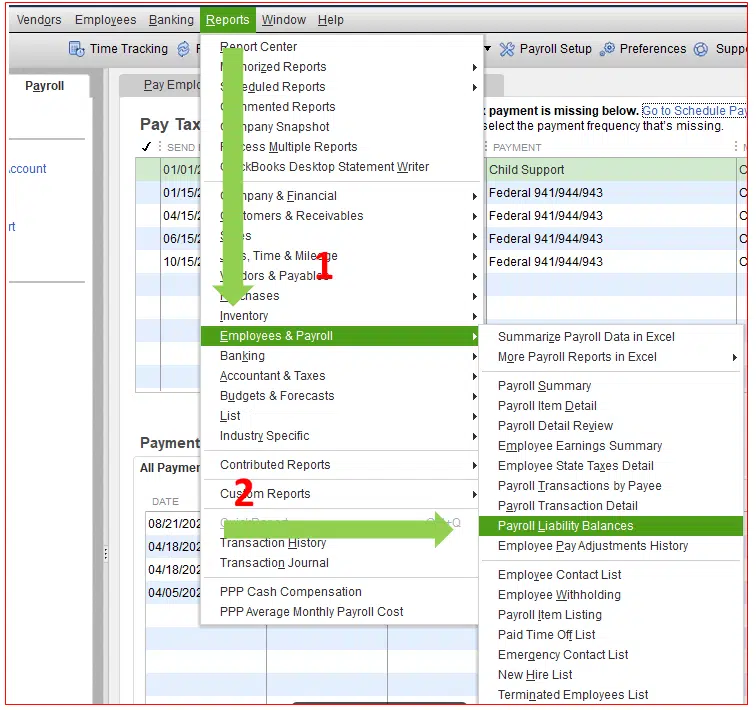
- Click on change the payroll tax and liability amounts.
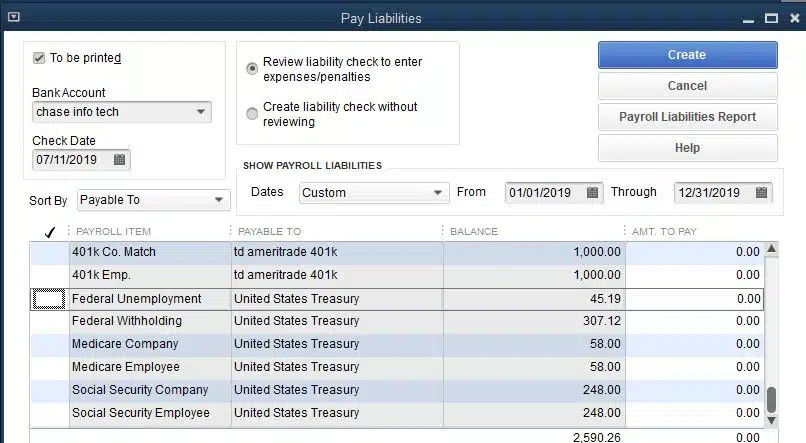
- Choose Adjust Payroll Liabilities.
- Select the appropriate modification date.
- Next, choose the Company option under Adjustment.
- From the item name drop-down menu, select Edit.
- Type the sum of negative values.
- Affected Accounts for Liabilities and Expenses can be selected by selecting the Affected Accounts option.
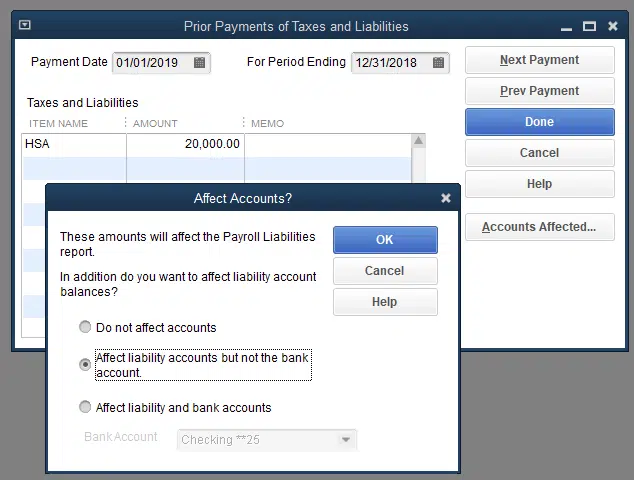
- Be careful to choose the option to Not Affect Accounts. If you don't want accounts to be impacted, choosing the option is important.
- Afterward, choose "Ok."